01
Dashboard
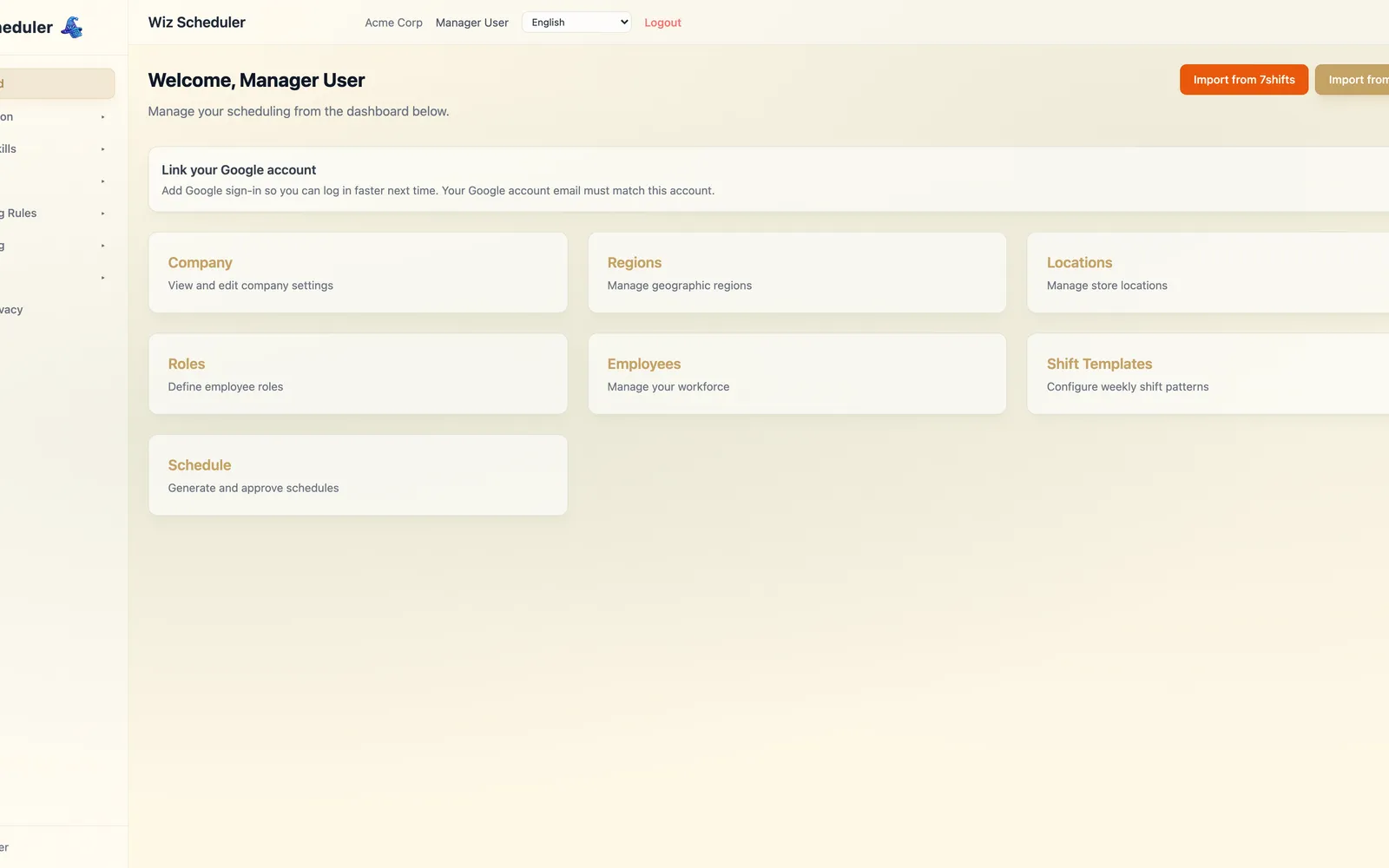
Your home base. See usage at a glance: billing period status, schedules generated, AI credits used, and storage. A quick jumping-off point for the screens you visit most.
Take a guided tour of the Wiz Scheduler manager experience: from configuring your company and locations, to defining roles and shift templates, to generating an AI-optimized weekly schedule and exporting it.
01
Your home base. See usage at a glance: billing period status, schedules generated, AI credits used, and storage. A quick jumping-off point for the screens you visit most.
02
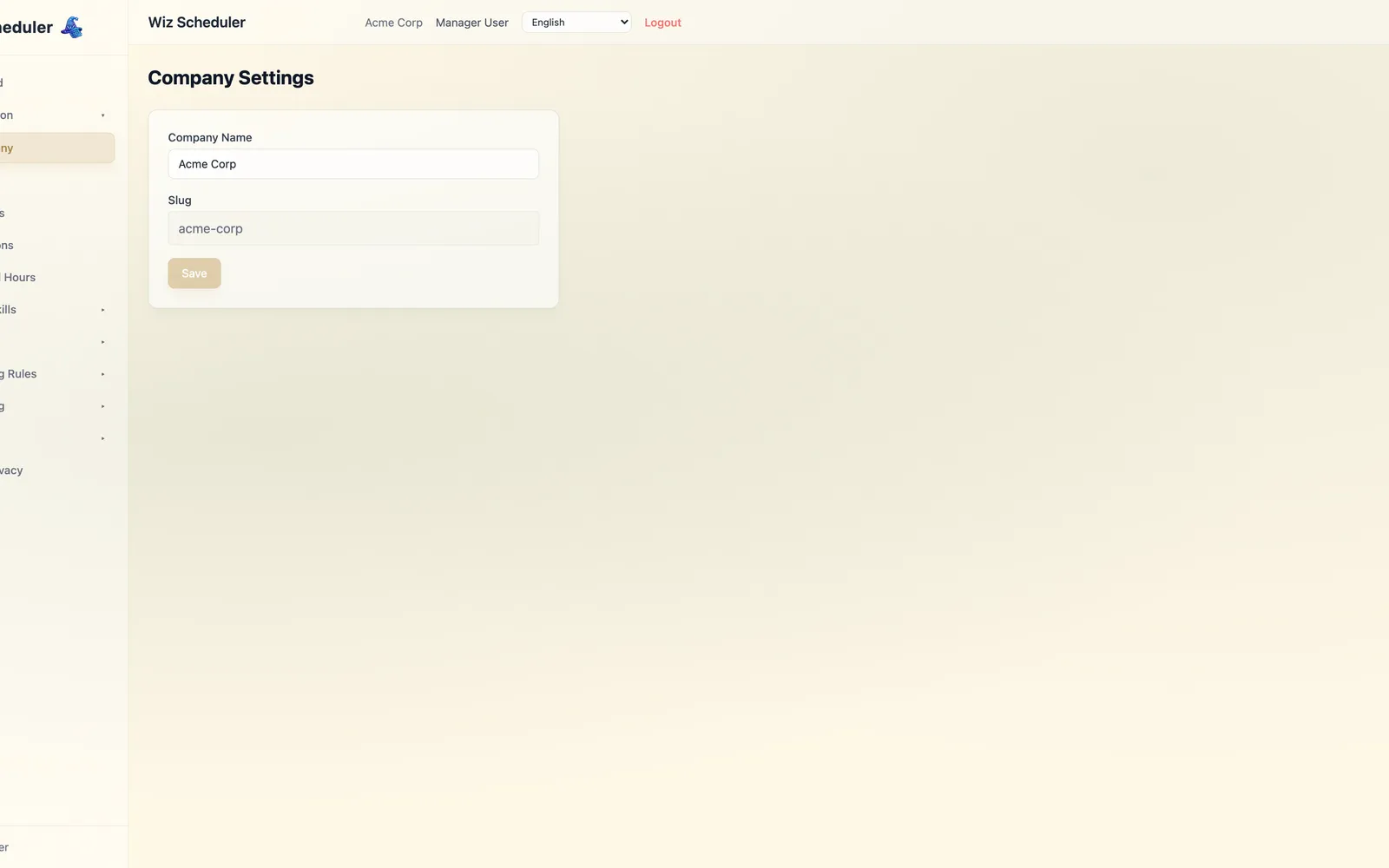
Configure your ownership group: company name, logo, branding, and high-level settings that apply across every region and location.
03
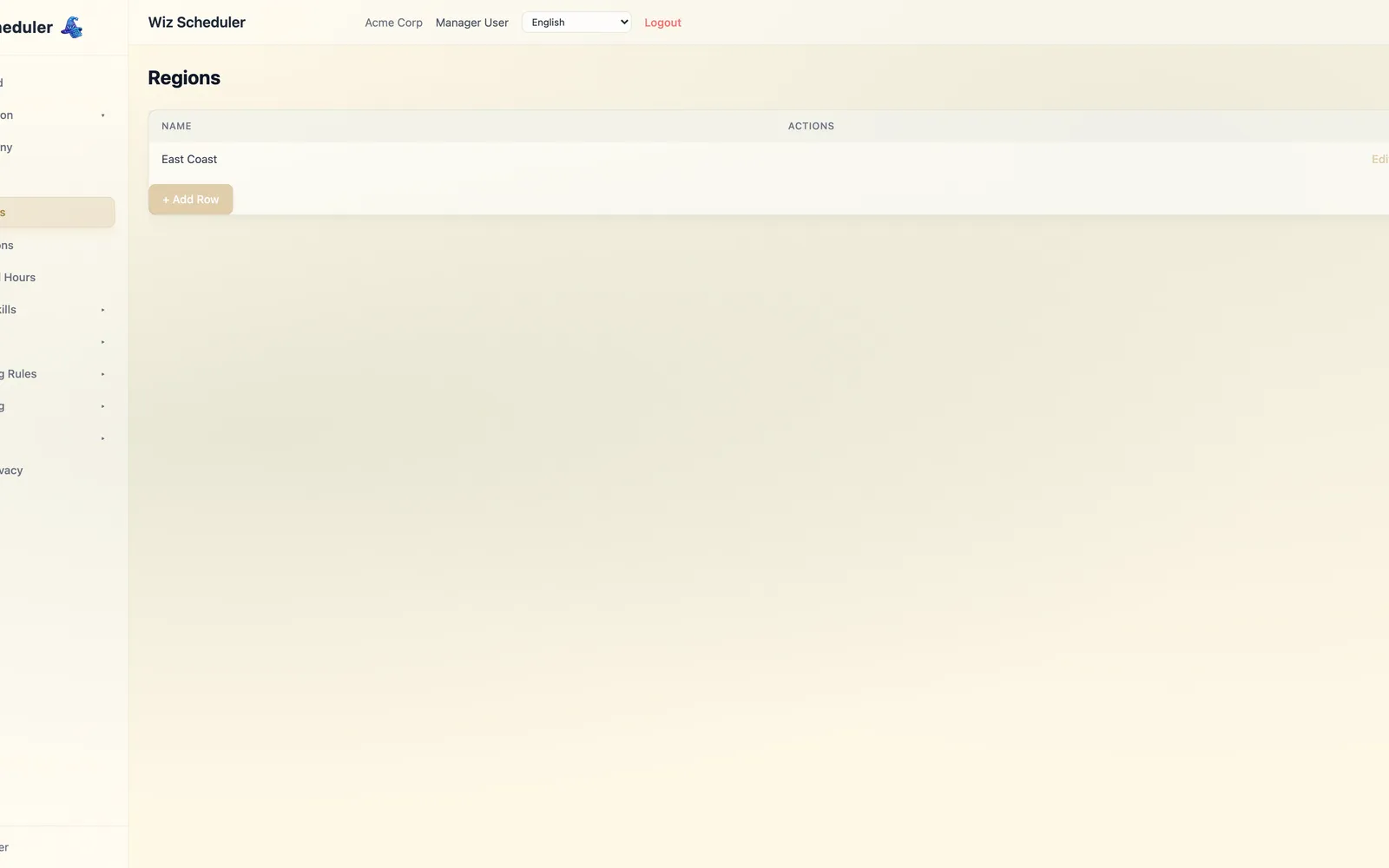
Group locations by region for reporting and management. Helpful for multi-state, multi-country, or franchise operators who want a layer above the individual location.
04
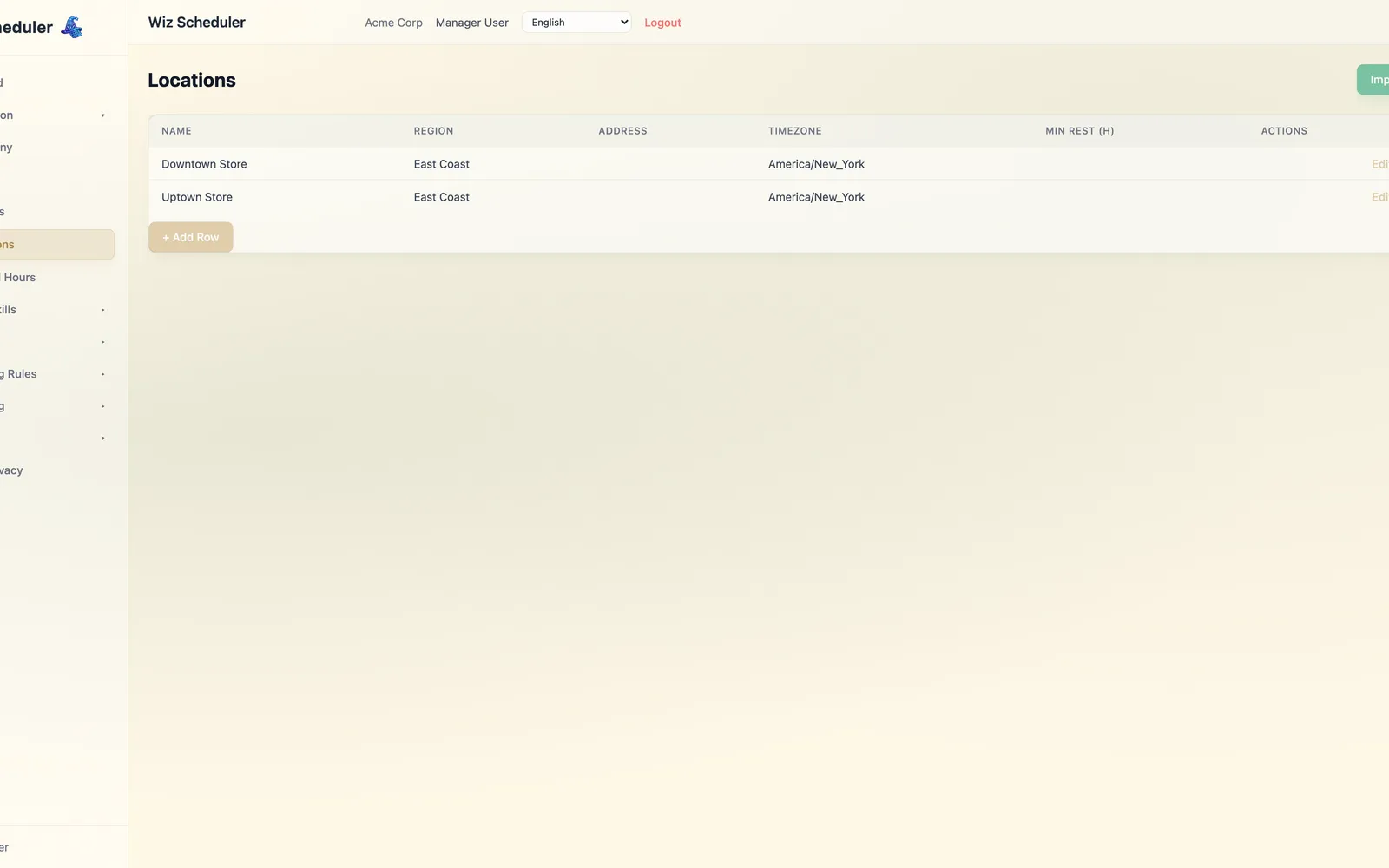
Manage every physical site you schedule for. Each location has its own timezone, address, region, and roster of eligible employees — and is scheduled independently by the AI.
05
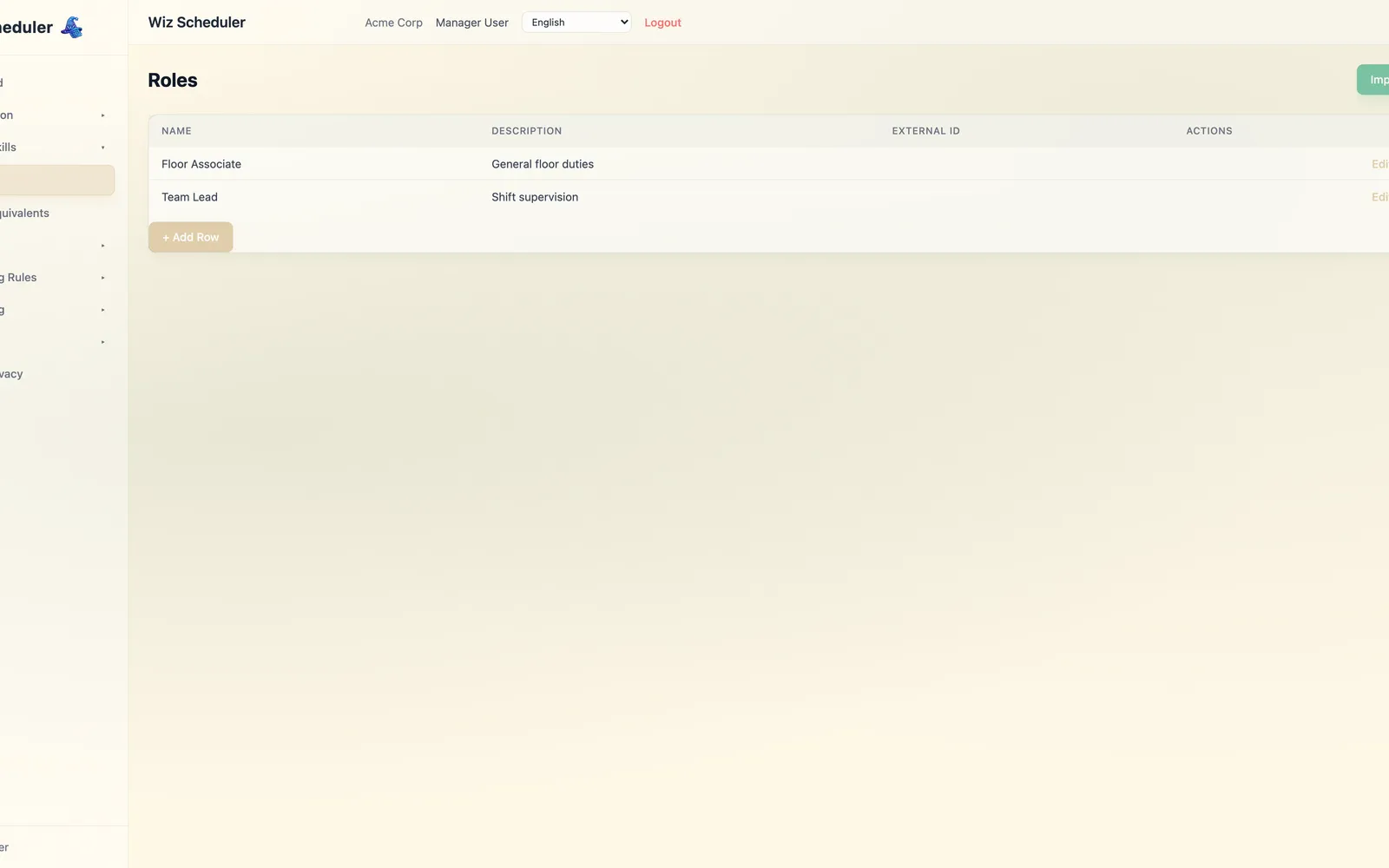
Define the job titles employees can be scheduled into. Roles are fully customizable per company — there are no hardcoded role names, so Wiz Scheduler adapts to any industry vocabulary.
06
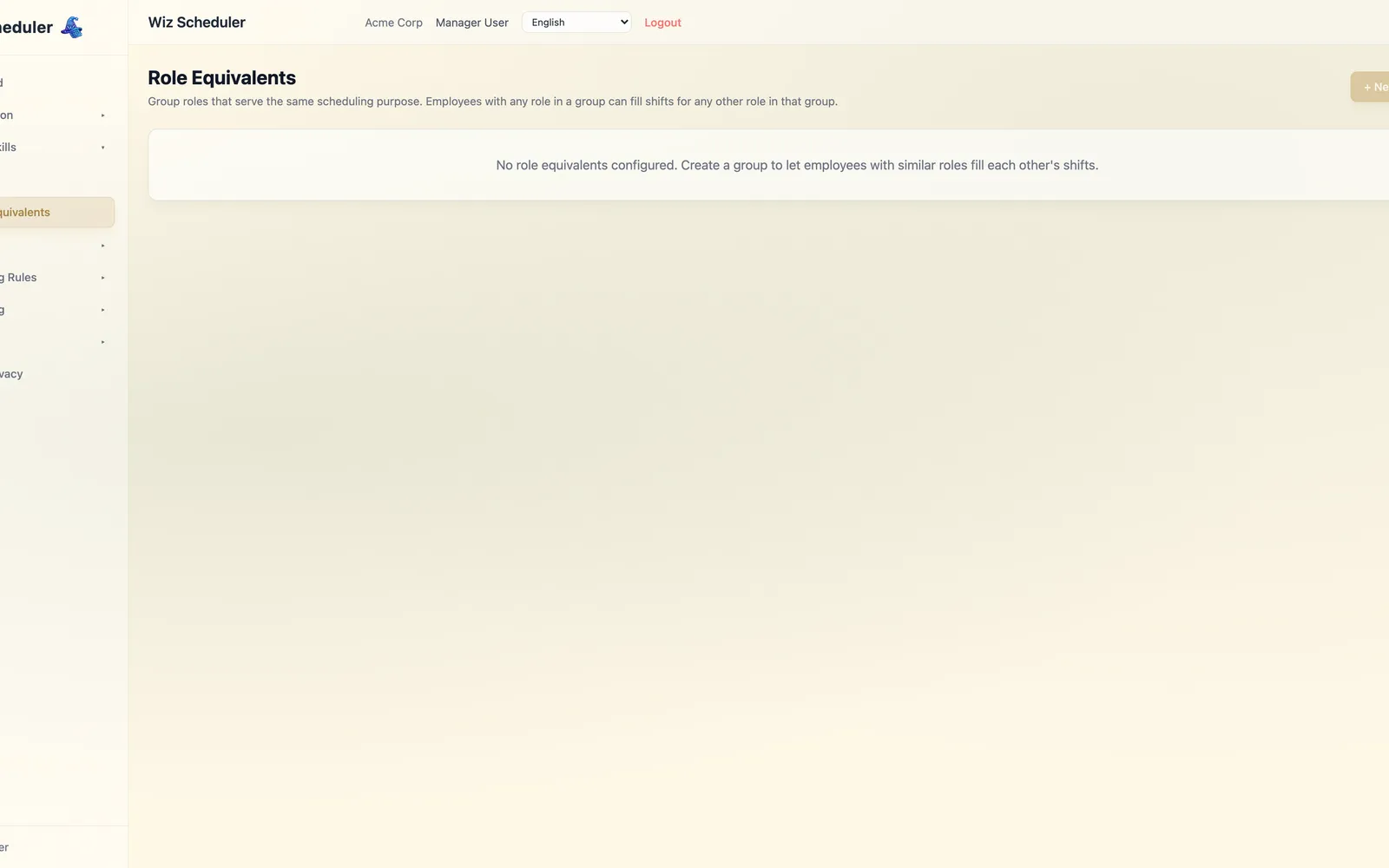
Map roles that can cover for each other. Lets the scheduler treat "Barista" and "Baker" as interchangeable when filling a shift, while respecting skill-level differences.
07
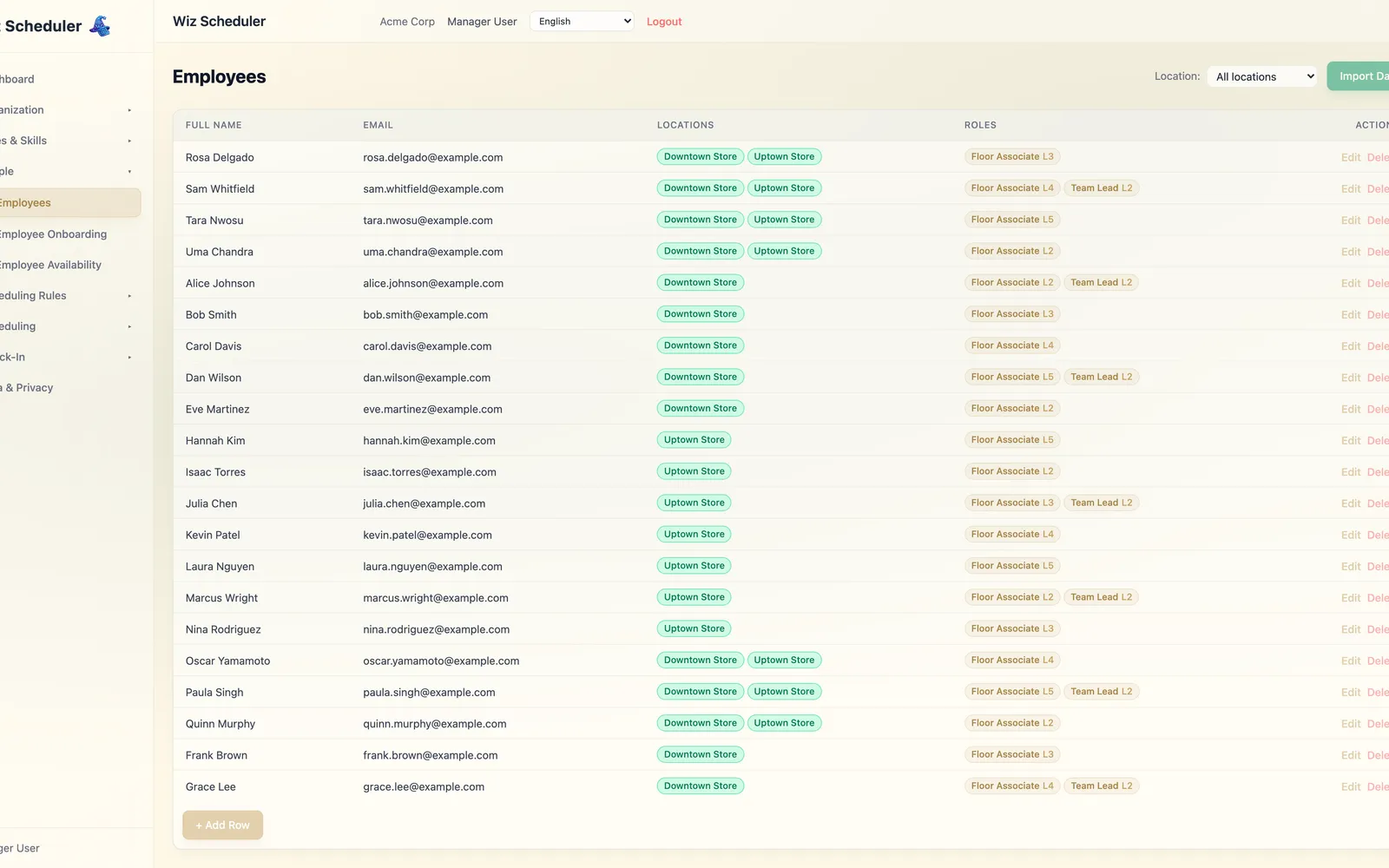
The master roster. Set each person's assigned roles, skill level, locations they can work at, hour limits, and availability. Inline editing makes bulk updates fast.
08
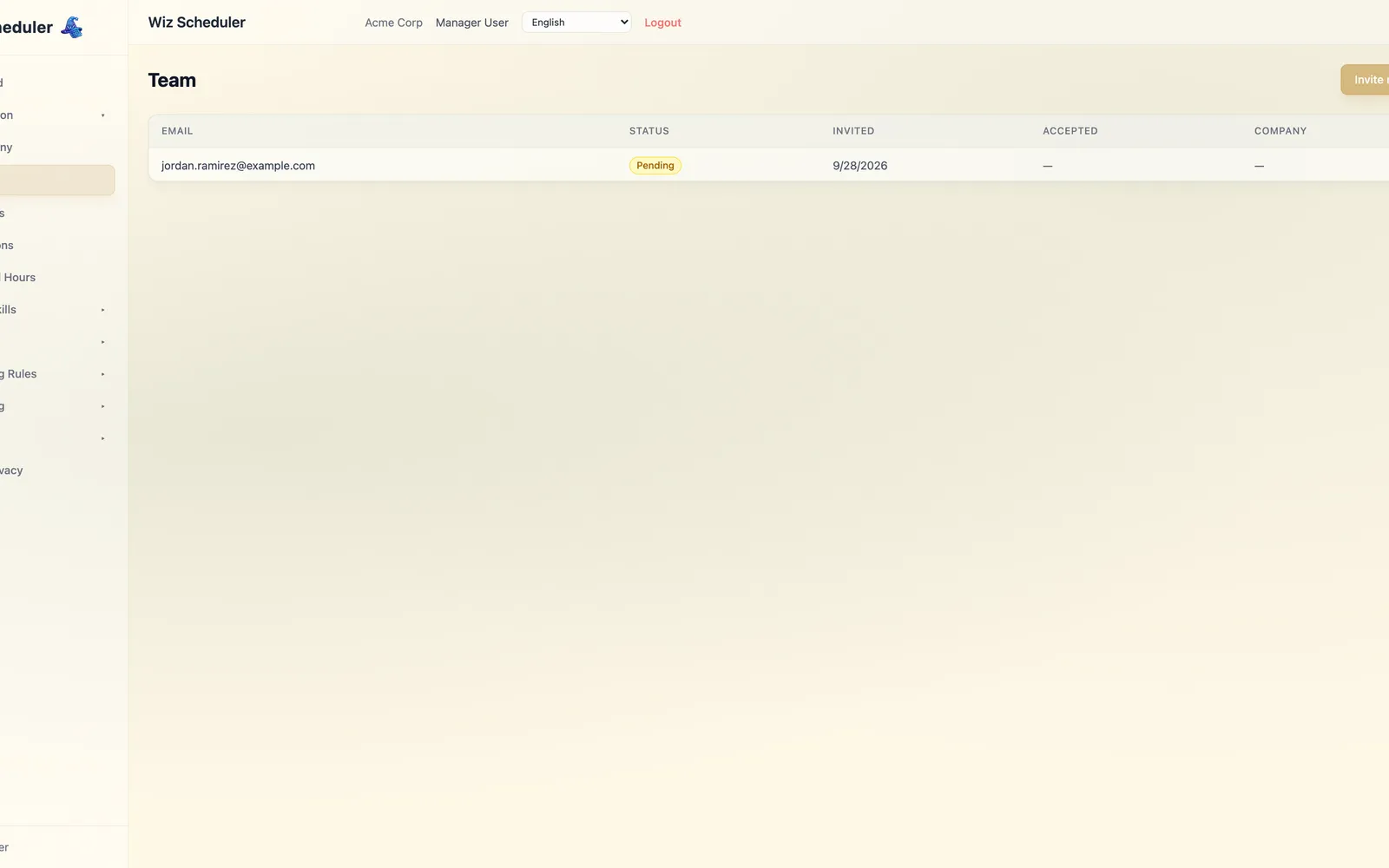
Invite other managers to help run the account. Track pending invites and see who has already accepted, all in one place.
09
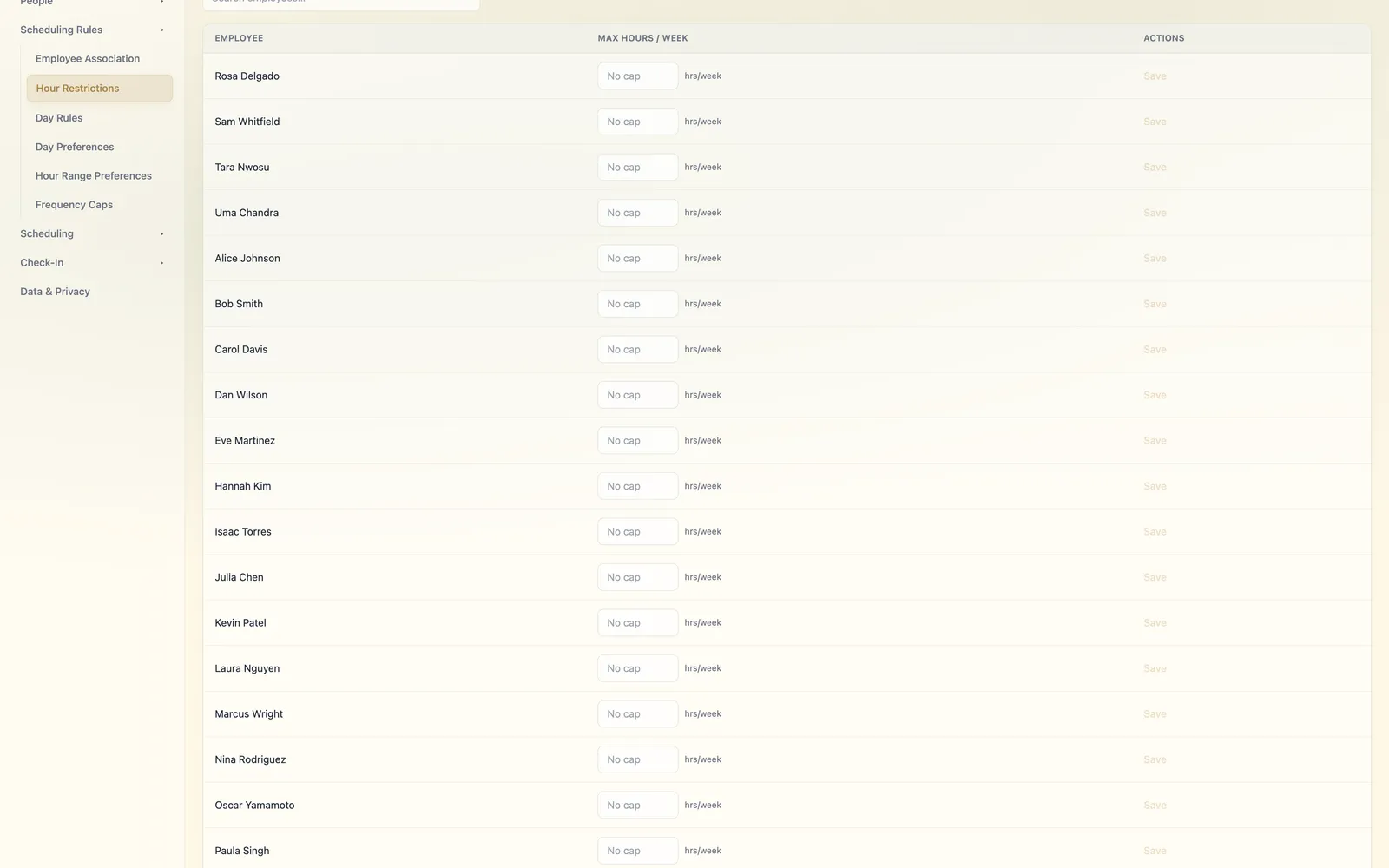
Enforce per-employee weekly hour caps and minimums. Useful for student visas, part-time agreements, and overtime budgets. The AI will never schedule outside these bounds.
10
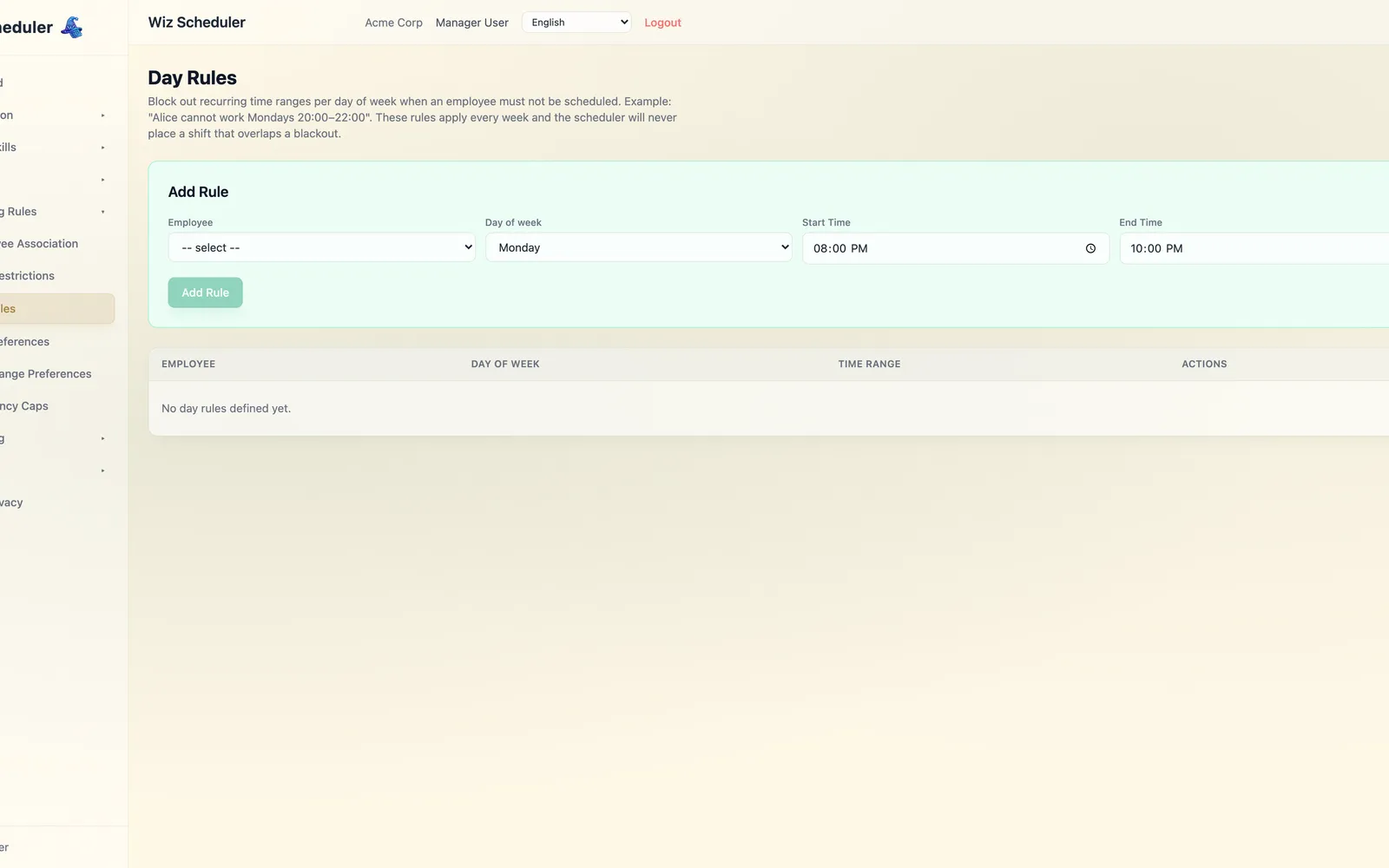
Block off entire days when a location is closed or an employee is unavailable. Holidays, vacations, training days — the scheduler respects them all automatically.
11
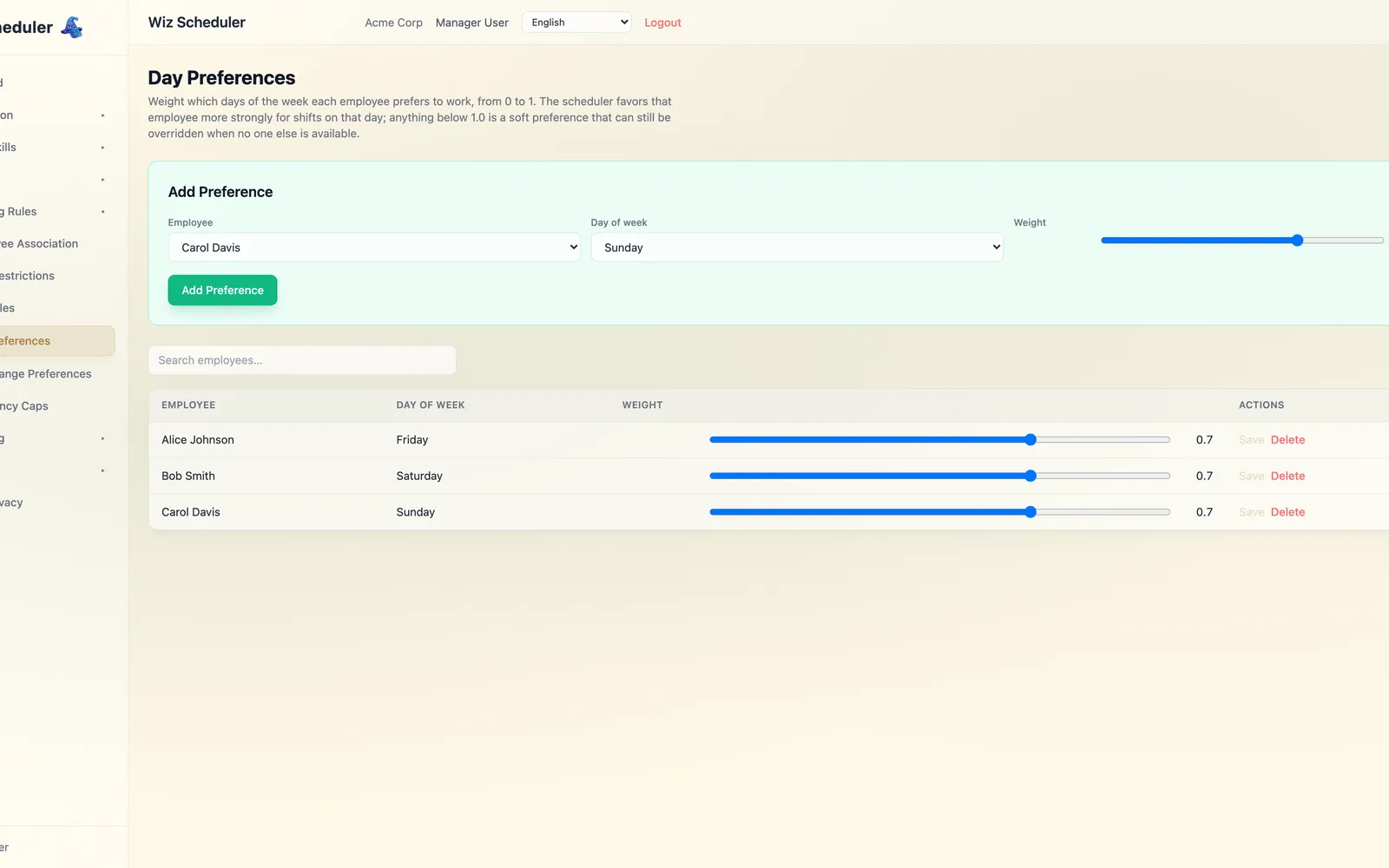
Weight which days of the week each employee prefers to work, from 0 to 1. The scheduler favors that employee more strongly for shifts on that day — a soft preference that yields when no one else is available.
12
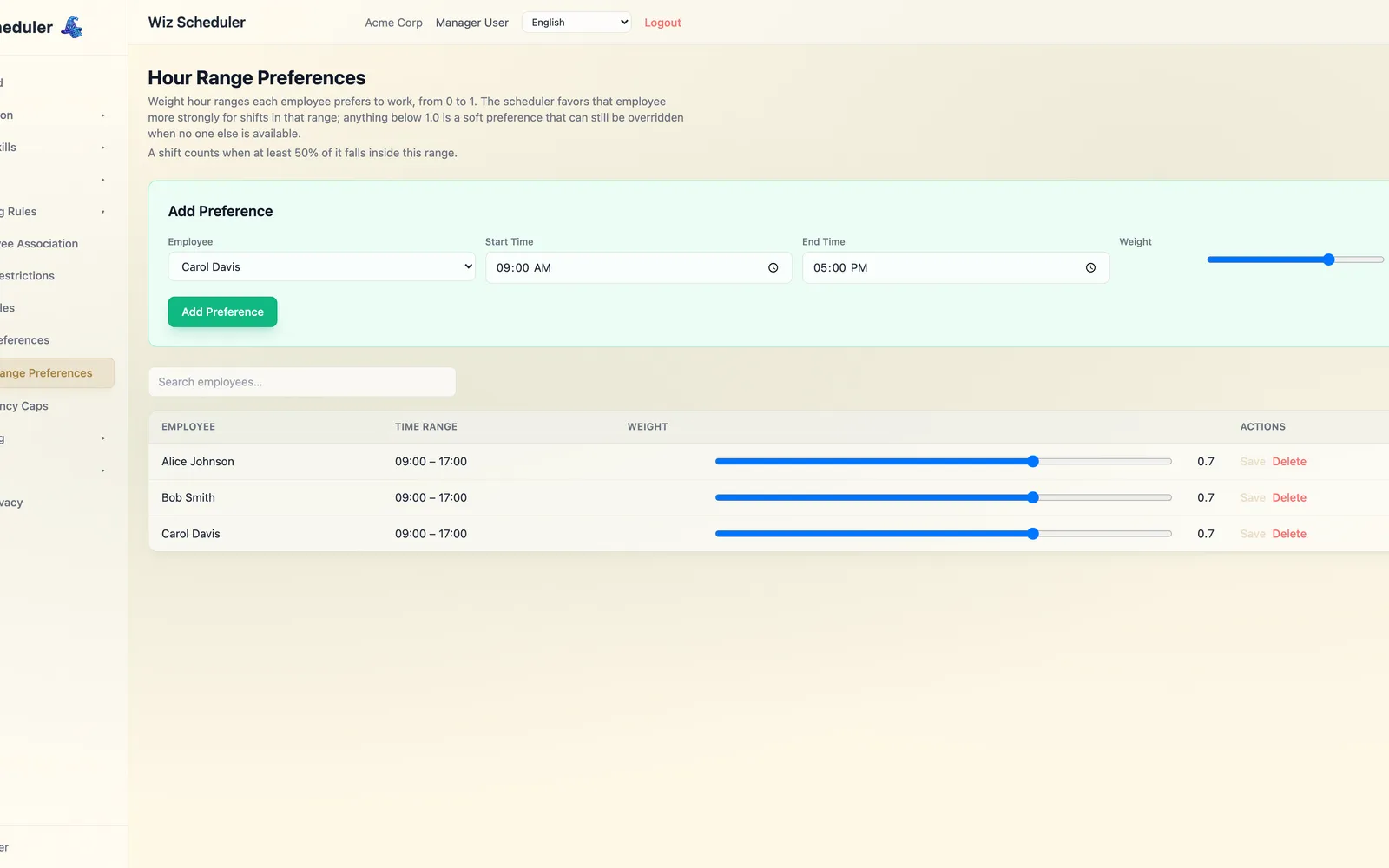
Weight the hours of the day each employee prefers to work, from 0 to 1. A shift counts toward a preference once at least half of it falls inside the chosen time range.
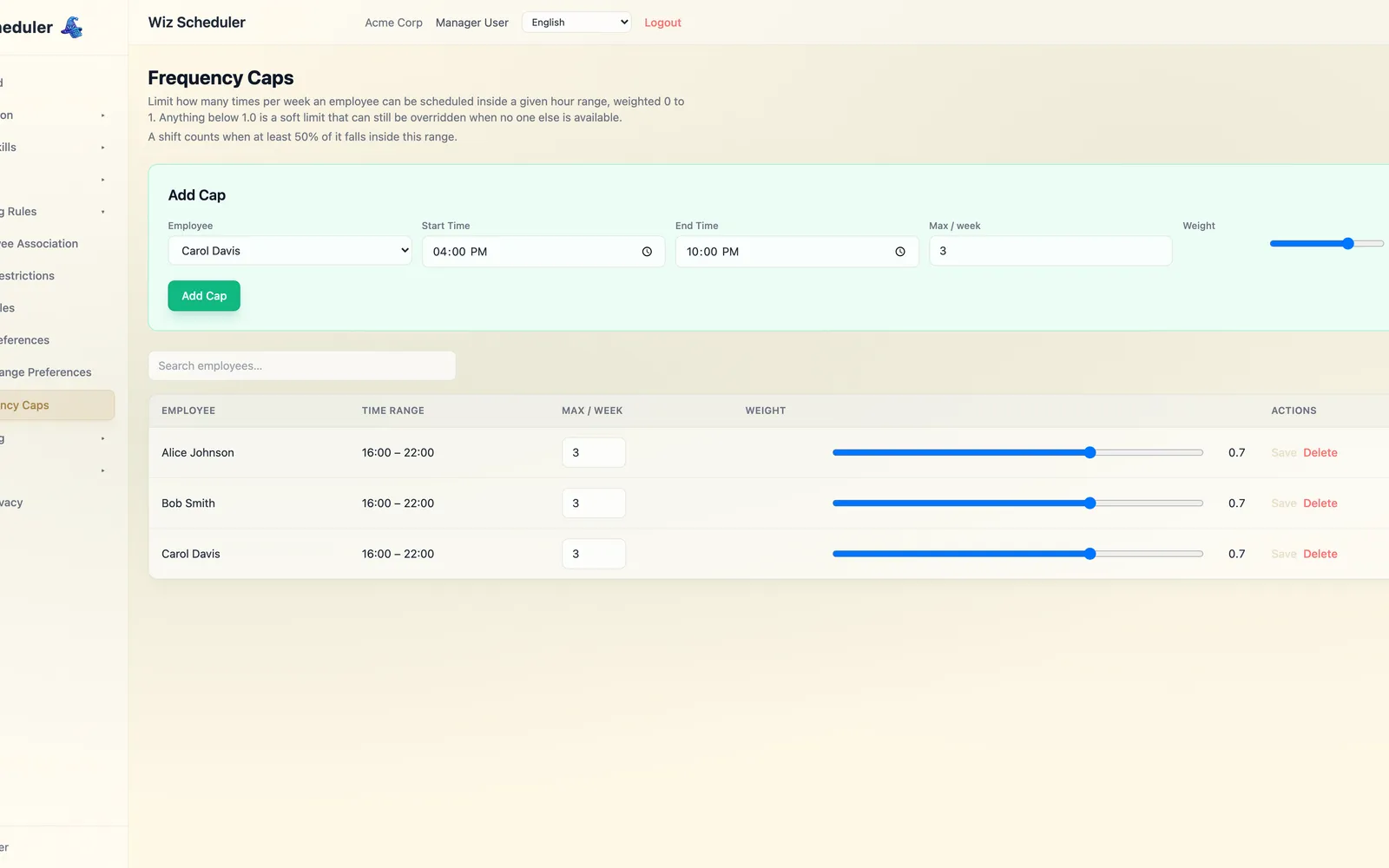
13
Limit how many times per week an employee can be scheduled inside a given hour range, weighted 0 to 1. Useful for capping evening or weekend shifts without ruling them out entirely.
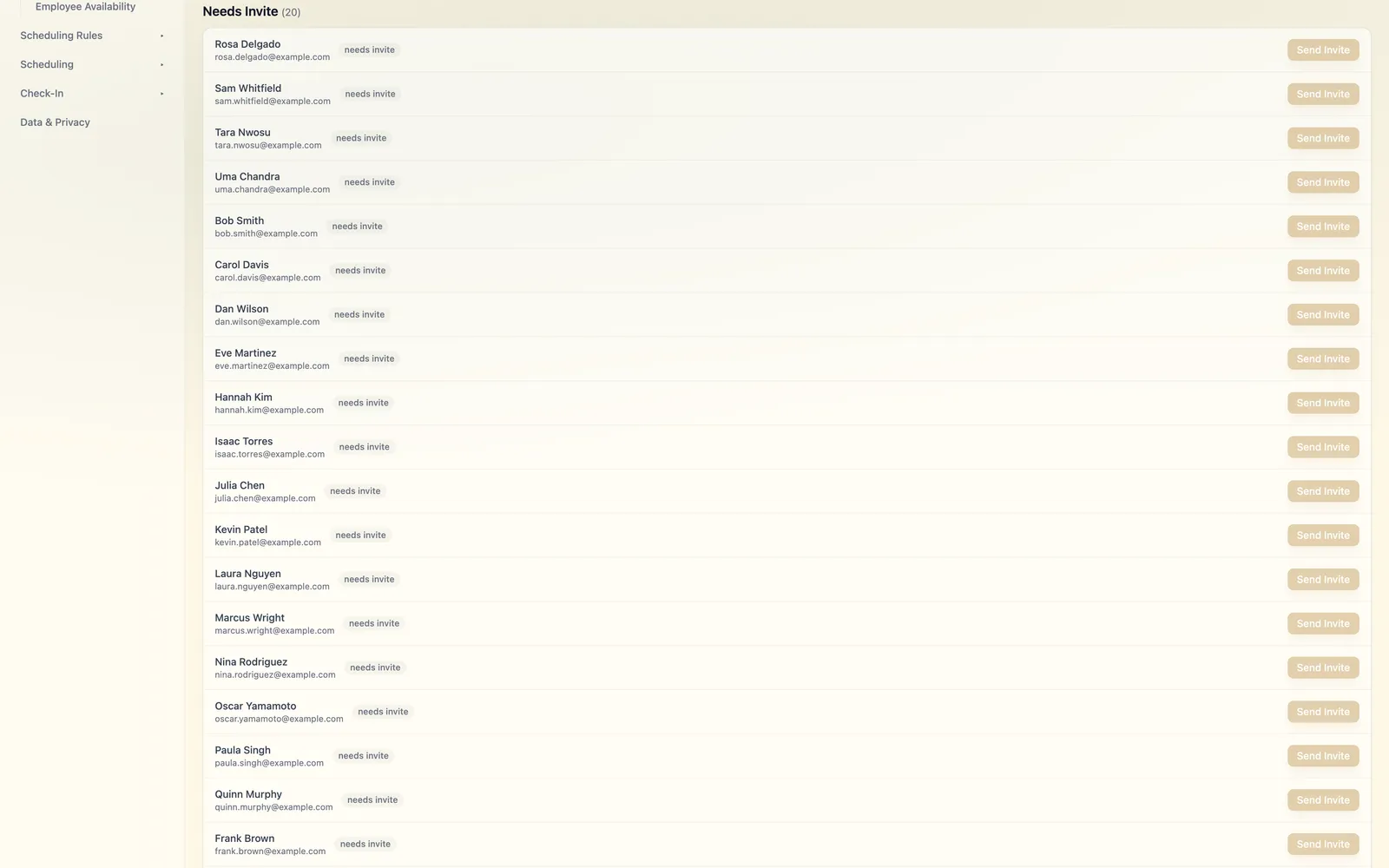
14
Invite new hires by email. They self-serve their availability and personal details — you stay focused on running the business, not chasing data entry.
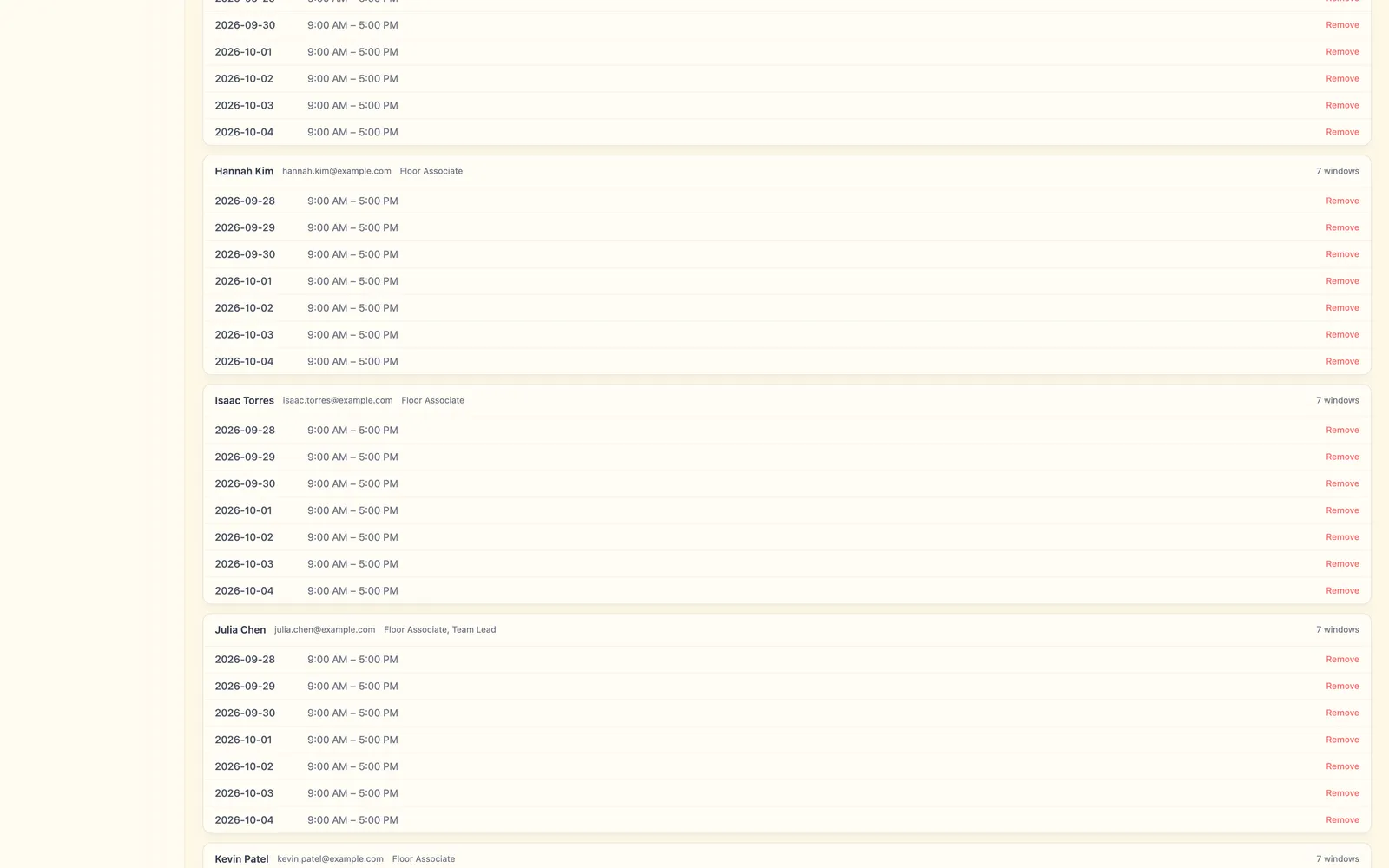
15
See every employee's self-reported availability windows in one place, and import or adjust them directly — no more chasing spreadsheets before you generate a schedule.
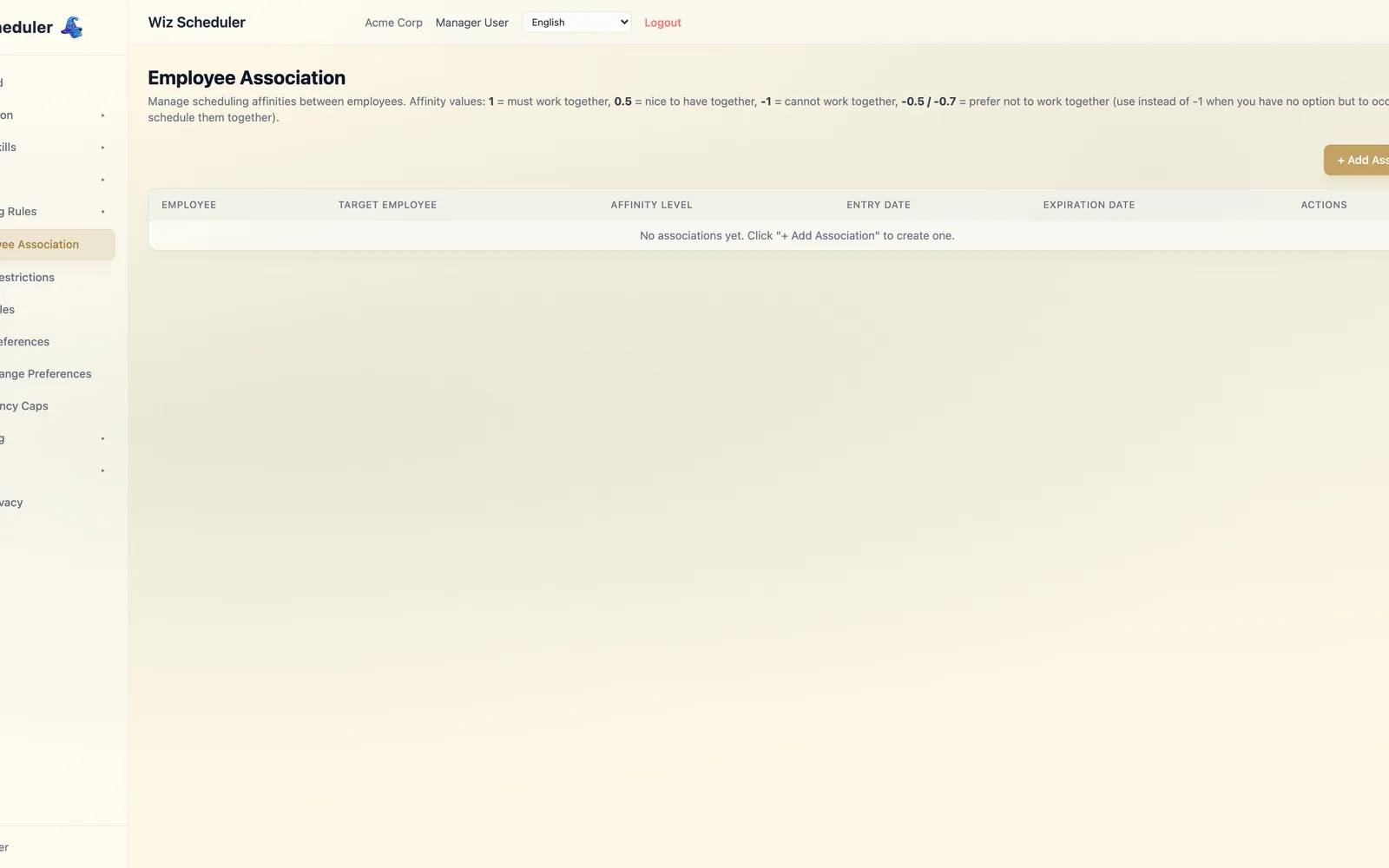
16
Mark which employees work well together (or shouldn't be paired). The AI uses these affinities and anti-affinities as soft preferences when assigning shifts.
17
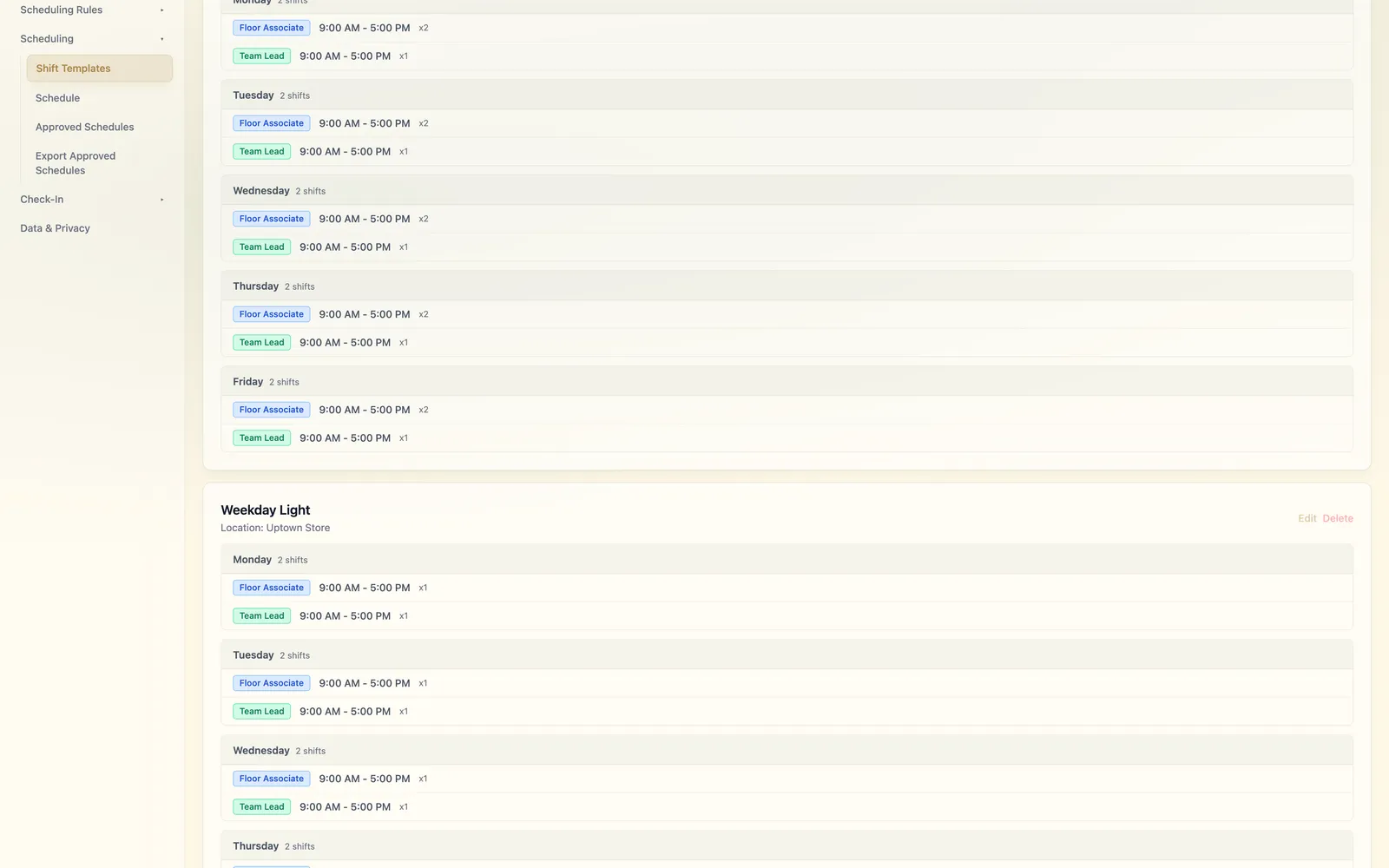
Define each location's recurring weekly shift pattern: which roles are needed, how many of each, on which days, and at what times. The blueprint the AI fills in.
18
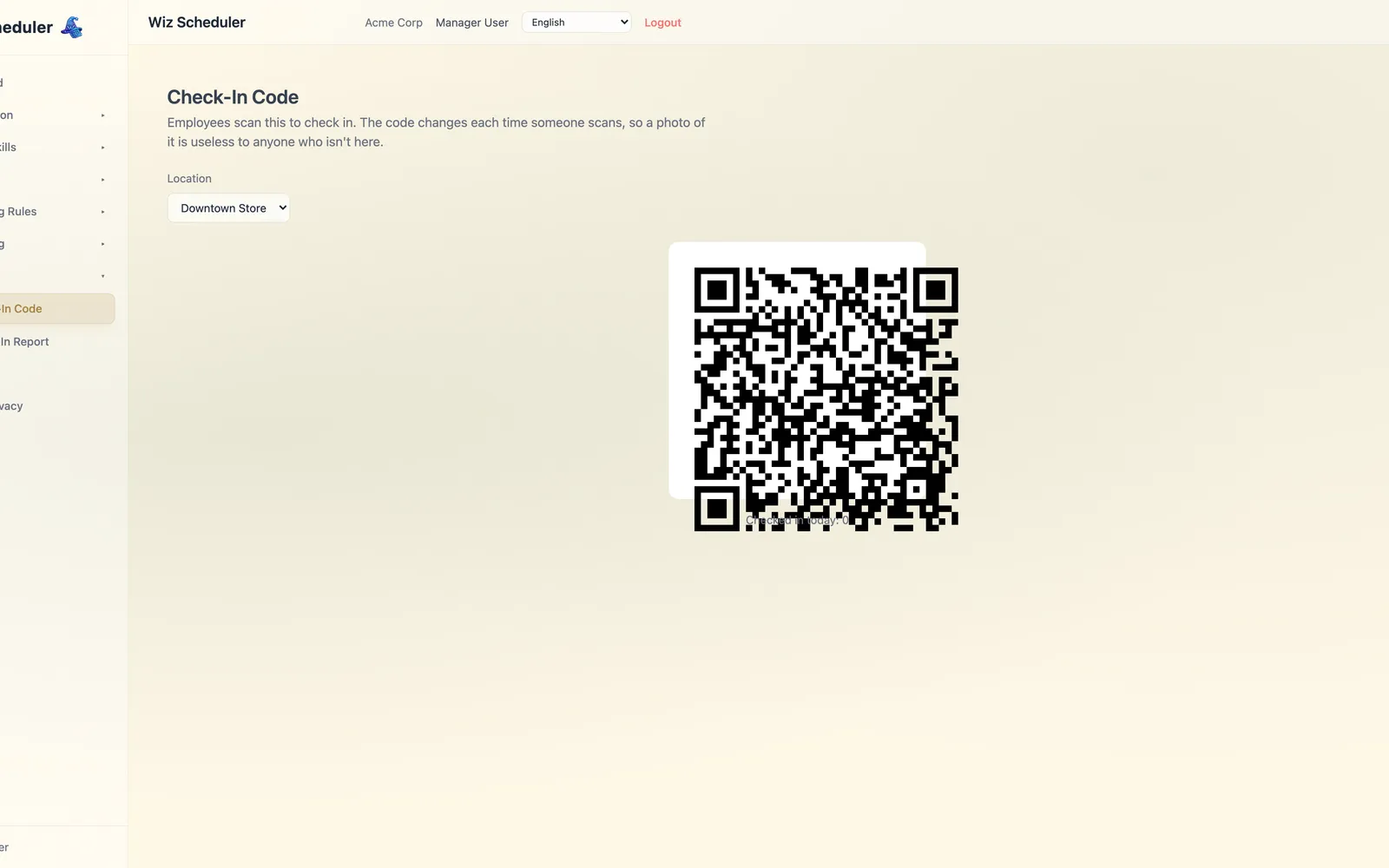
A rotating QR code employees scan to check in for their shift. Because it changes with every scan, a screenshot of it is useless to anyone who isn't standing at the location.
19
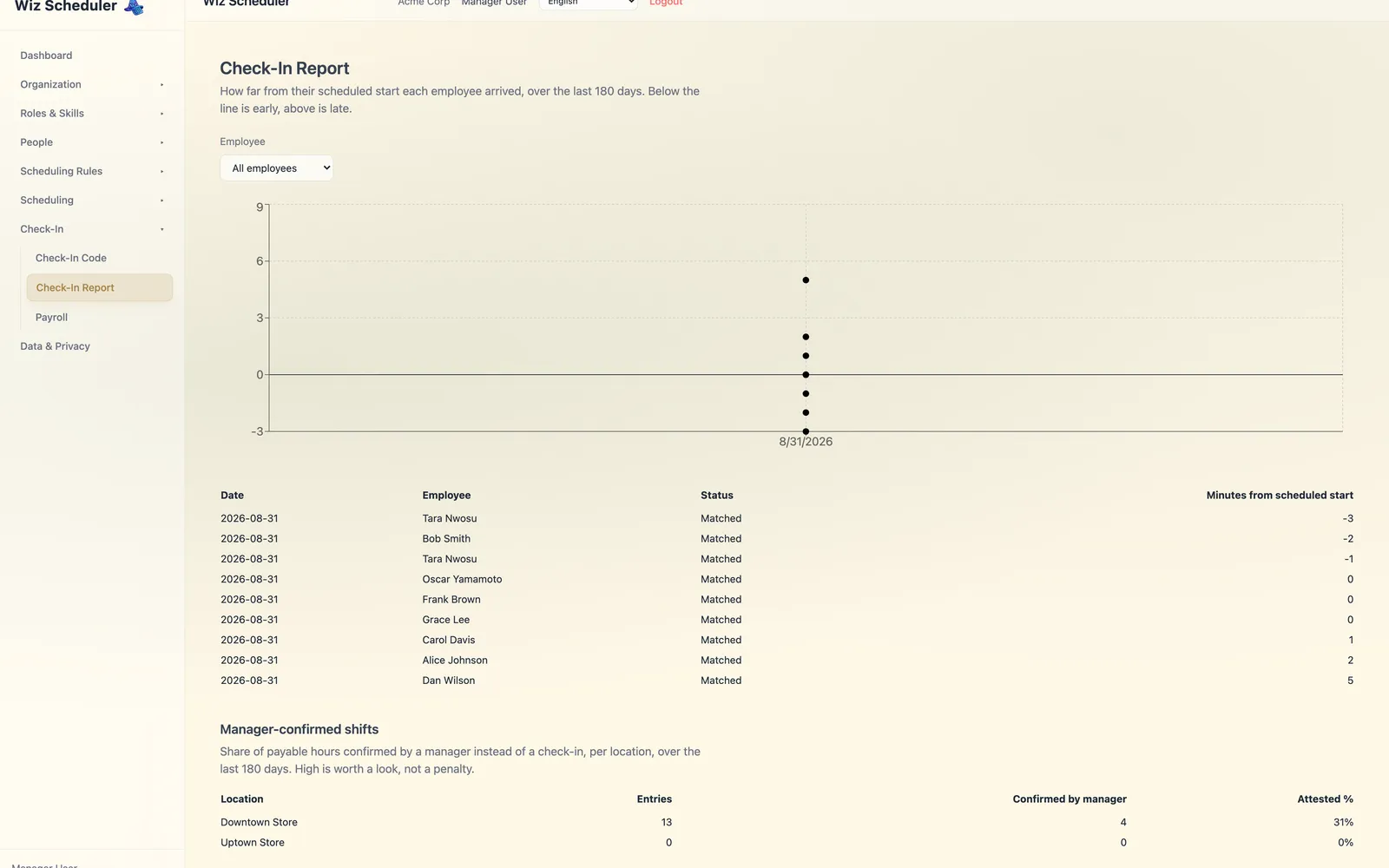
See how far from their scheduled start each employee arrived, plotted over time, plus the share of hours a manager had to confirm by hand instead of a scan.
20
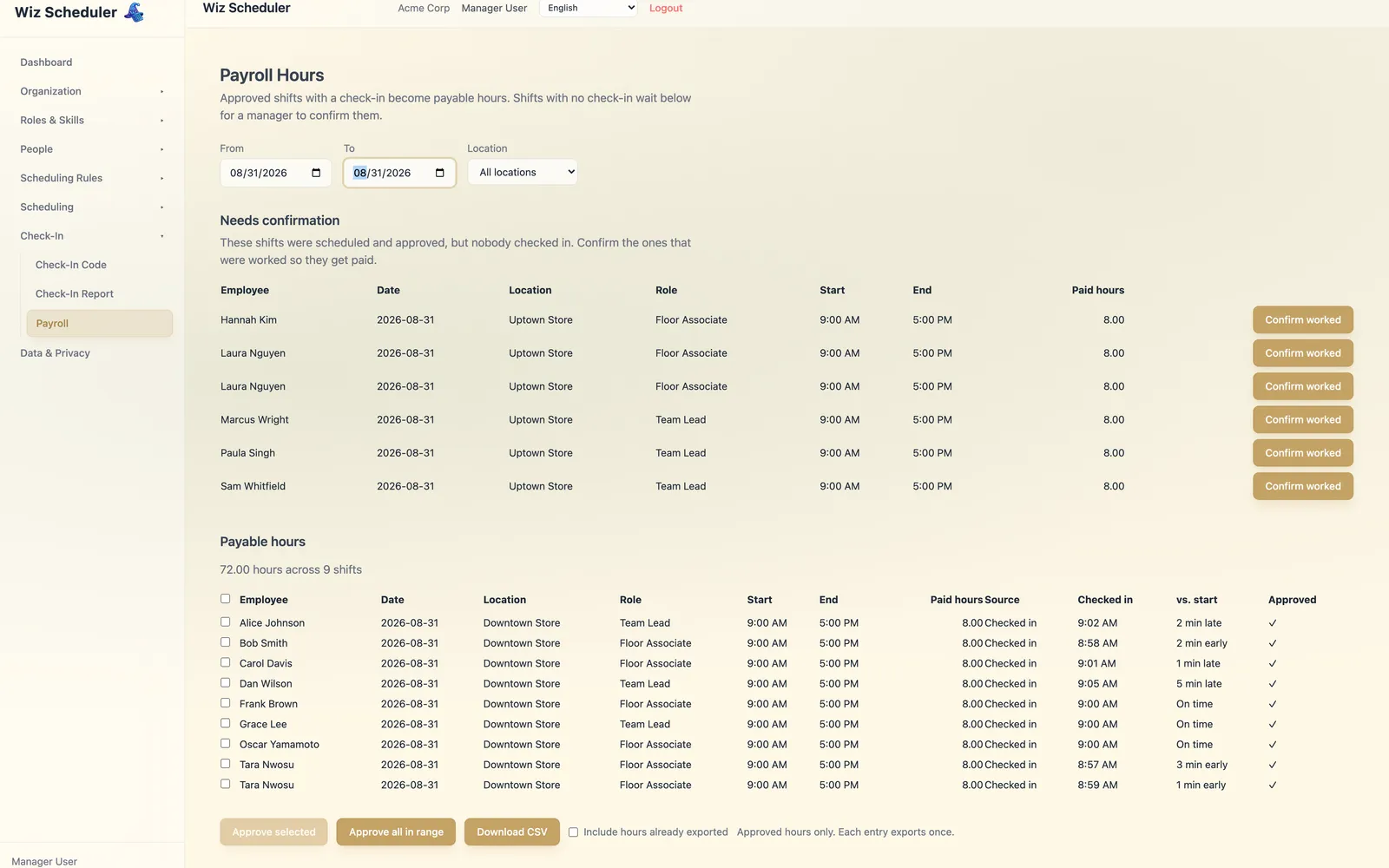
Turn approved, checked-in shifts into payable hours automatically. Confirm the rare shift nobody scanned for, approve a pay period, and export straight to CSV.
21
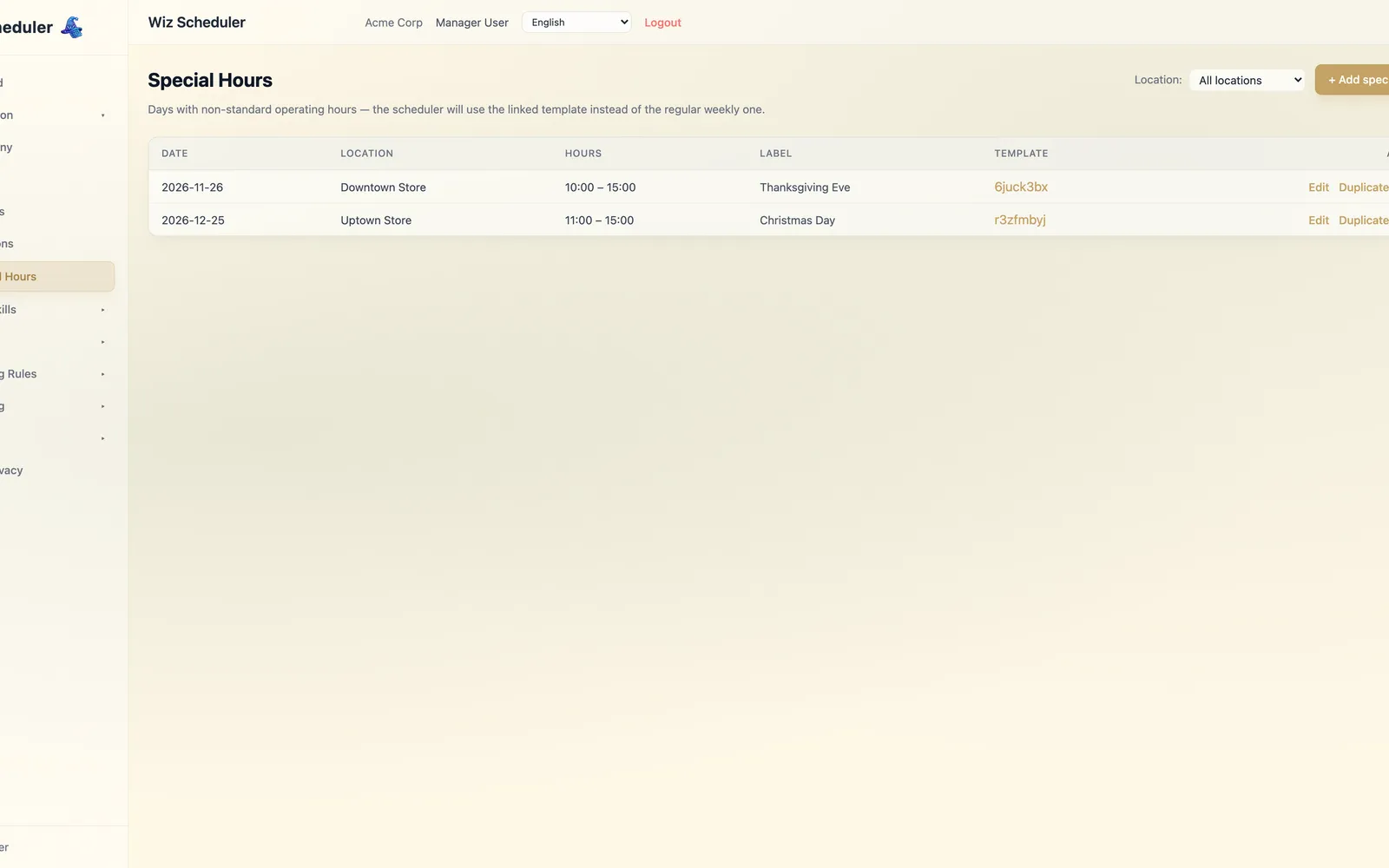
Set one-off operating hours for holidays and other non-standard days. The scheduler swaps in a cloned shift template for that day instead of the regular weekly one.
22
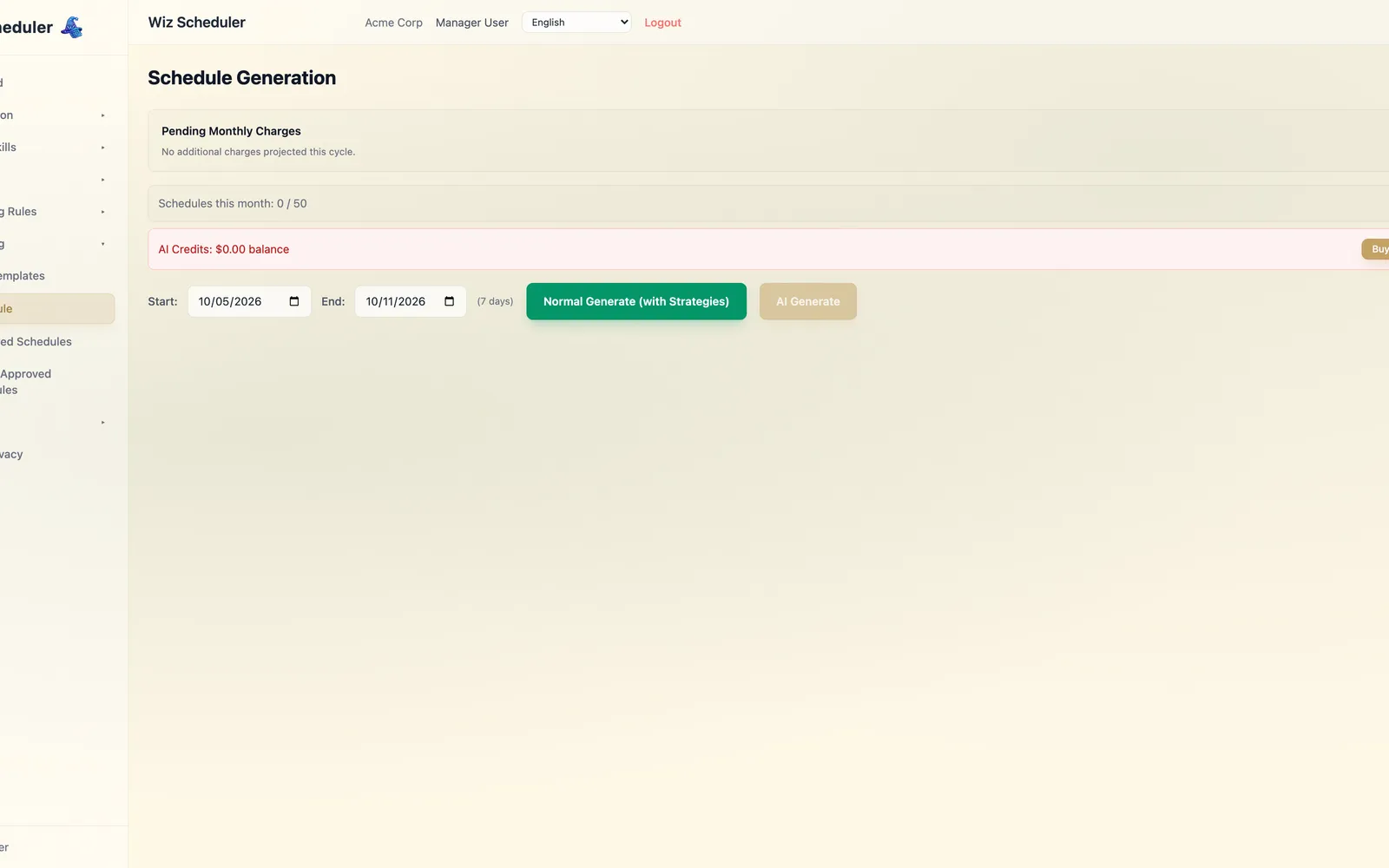
Generate optimized weekly schedules with one click. Pick an algorithmic strategy (Rotation, Max Hours, Random) or AI. Review per-location results, edit inline, and publish.
23
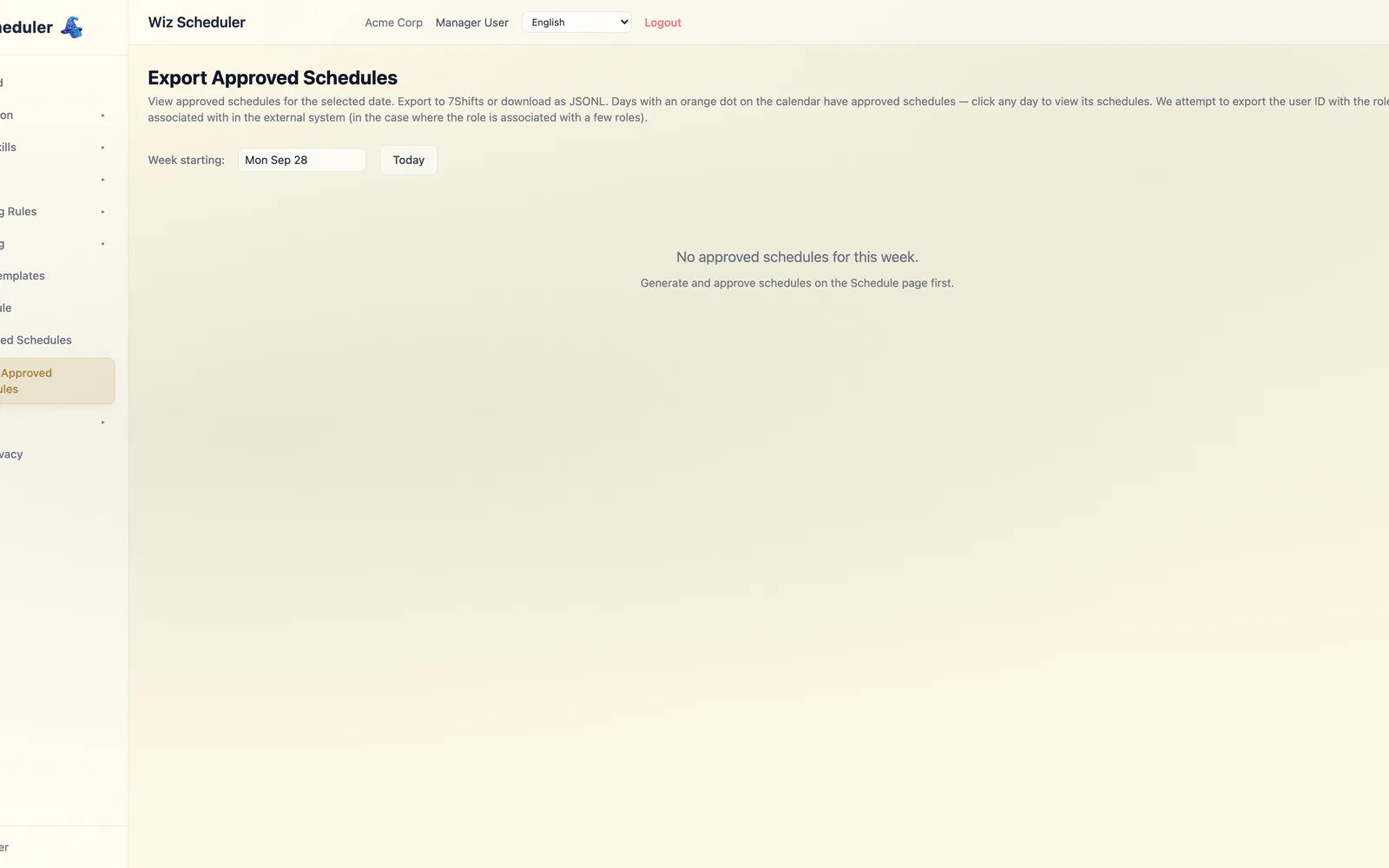
Download published schedules as CSV or PDF, or push directly to 7shifts and Deputy. Keep your existing payroll and POS workflows unchanged.
24
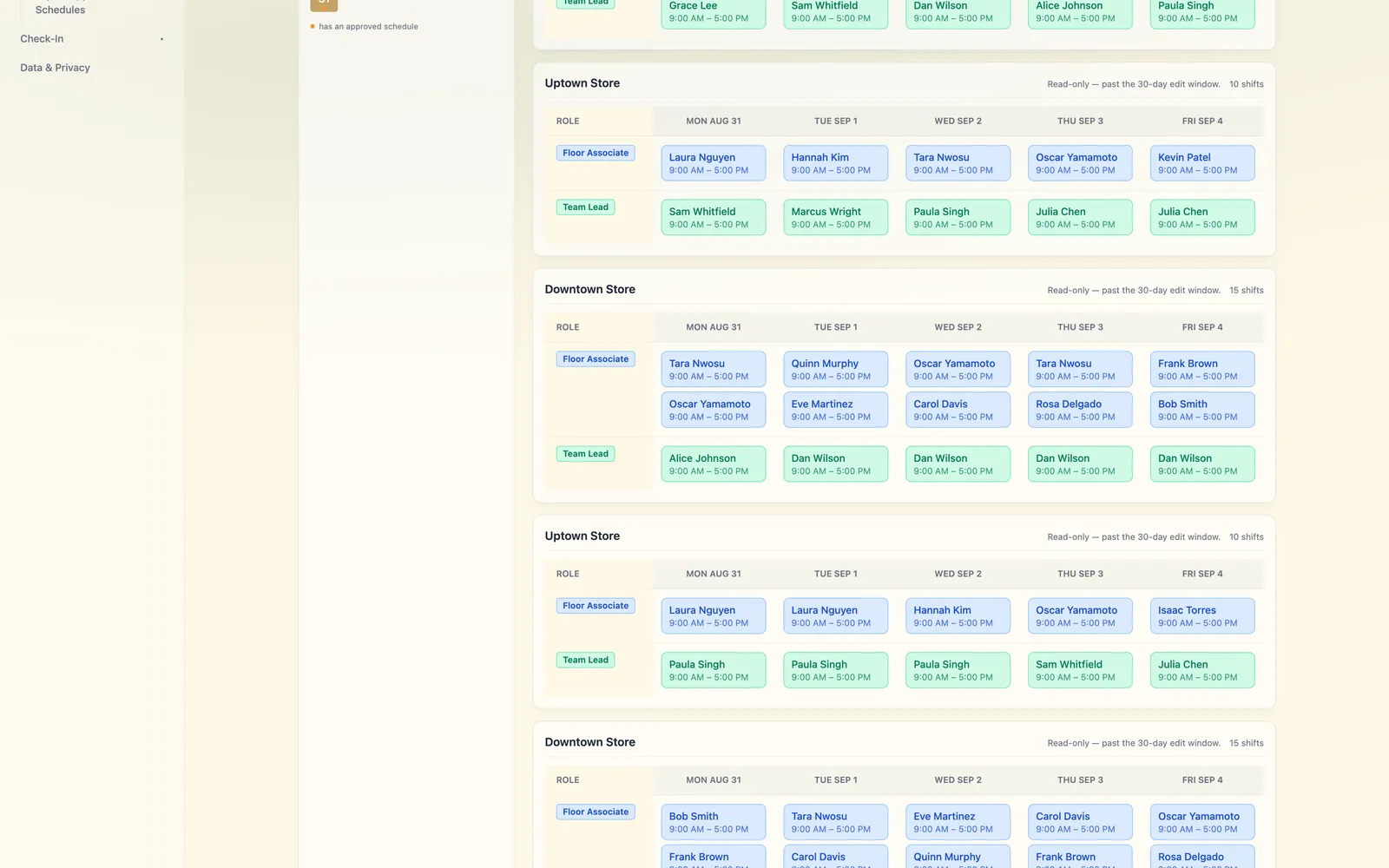
Browse any past week exactly as it looked the moment it was approved — the permanent record the rest of the app, including payroll, is built on.
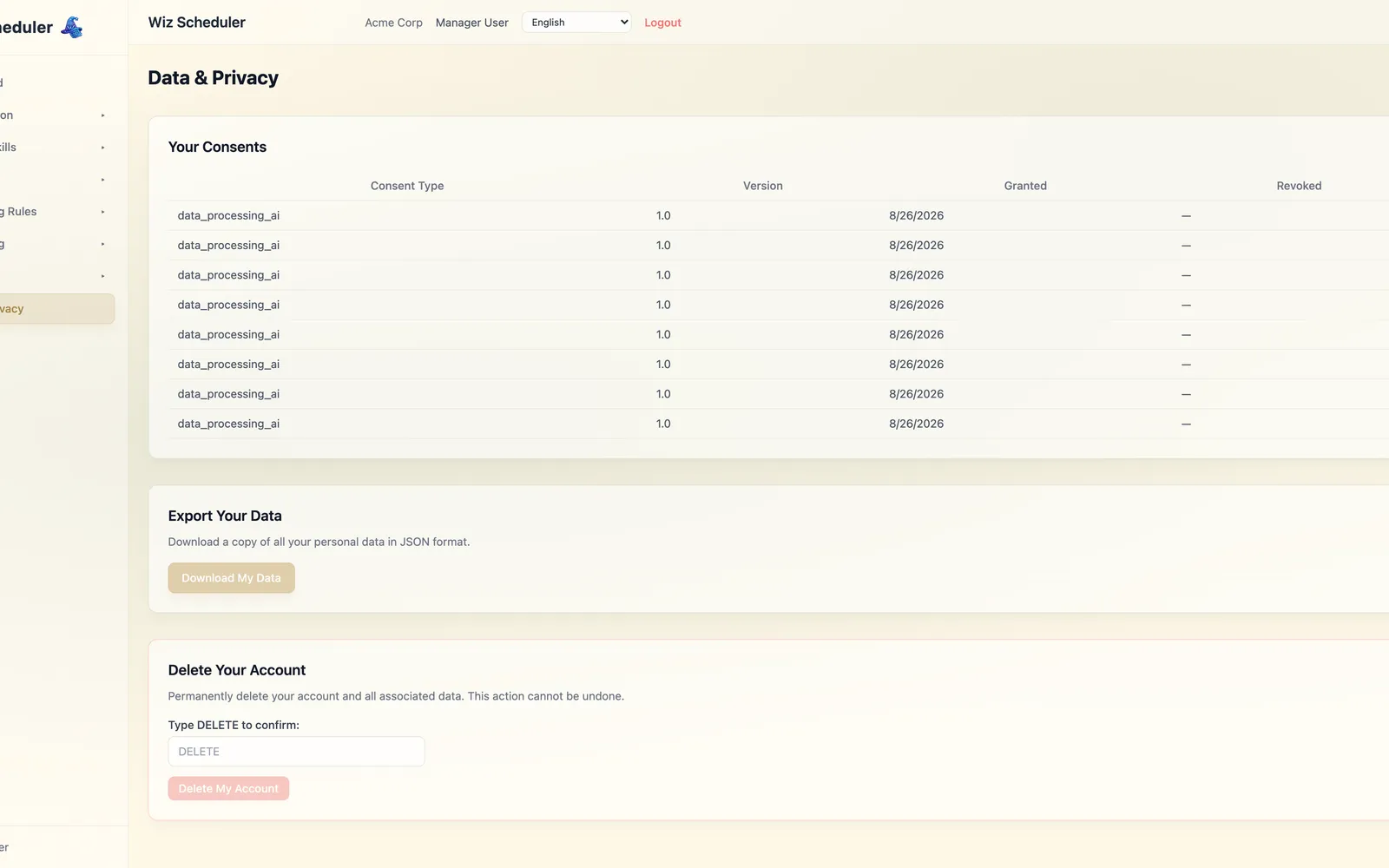
25
GDPR-friendly tools for data export, erasure, and consent. Manager-side view of every data subject request and its status.
Start with the free tier — no credit card required.